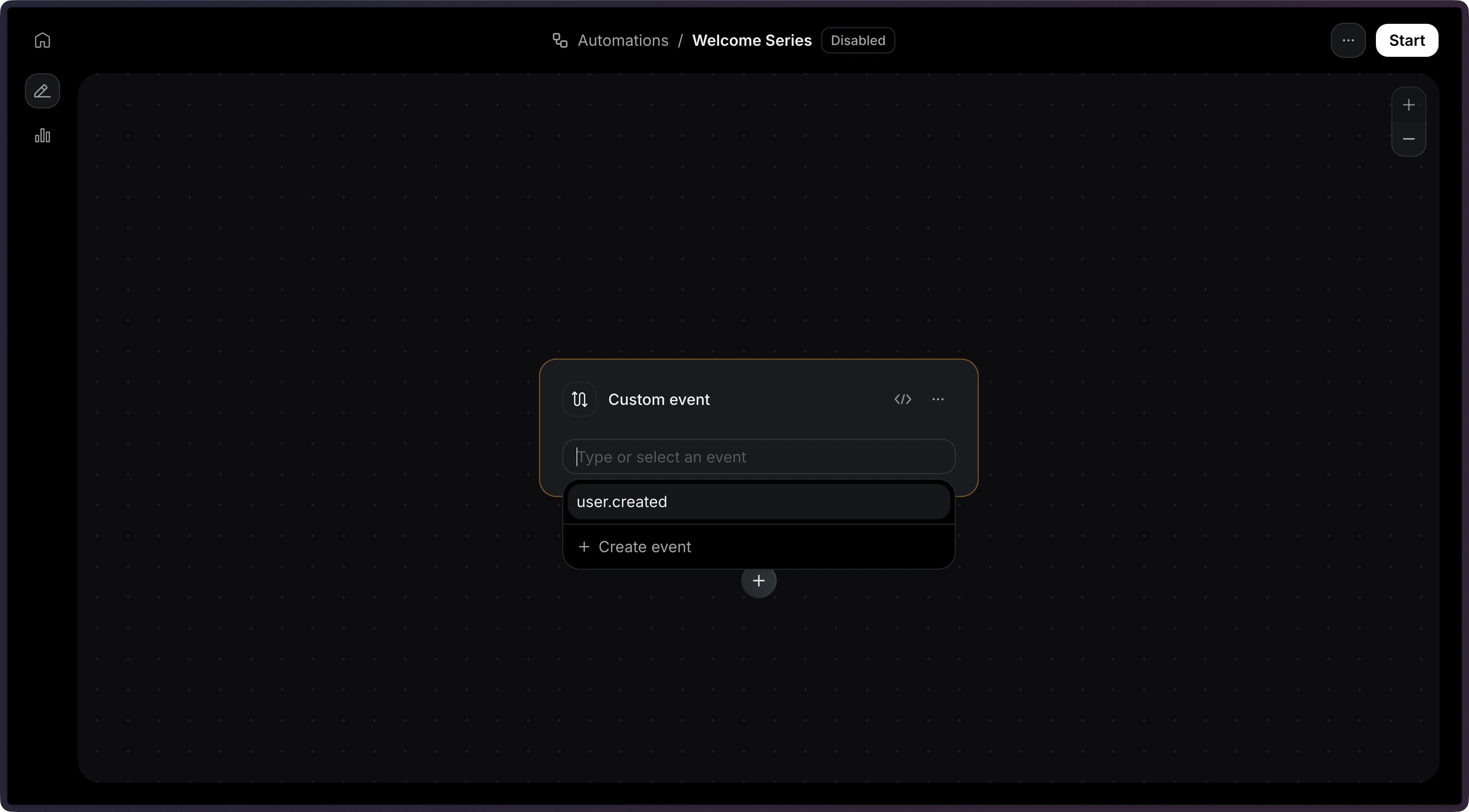
A trigger is the first step in every Automation. It defines which event will start the Automation when received. When your application sends an event to Resend, every active Automation with a matching trigger will execute its workflow for that contact.

How it works

The trigger is the first node in the editor.Add Trigger to AutomationChoose an existing custom event or type a new event name.Add Custom Event
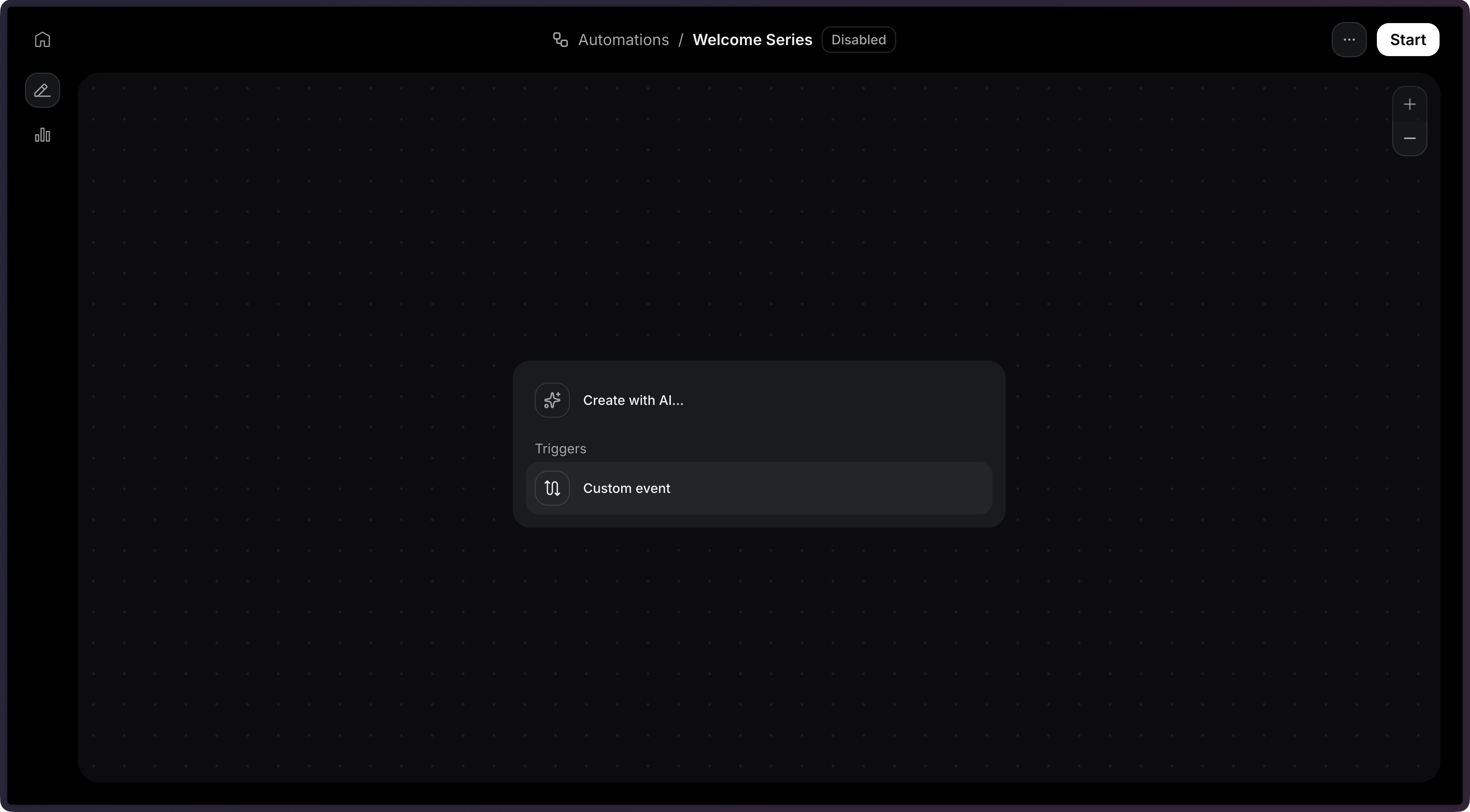
Event names cannot start with the resend: prefix, which is reserved for system events.

Identifying contacts

When sending an event to trigger an Automation, you must identify the contact using either a contact_id or an email address.
Use a contact ID when you already have the contact stored in your Audience:
import { Resend } from 'resend';

const resend = new Resend('re_xxxxxxxxx');

const { data, error } = await resend.events.send({
  event: 'user.created',
  contactId: '26e2b838-bf6d-4515-b6a7-17525b12b05a',
  payload: {
    plan: 'pro',
  },
});

Event payload

You can include a payload object with your event to pass data into the Automation. This data becomes available as variables in subsequent steps in the Automation using the event.* namespace.
import { Resend } from 'resend';

const resend = new Resend('re_xxxxxxxxx');

const { data, error } = await resend.events.send({
  event: 'payment.failed',
  contactId: 'e169aa45-1ecf-4183-9955-b1499d5701d3',
  payload: {
    amount: 49.99,
    currency: 'USD',
    retryDate: '2026-11-01',
  },
});
In this example, you can use event.amount, event.currency, and event.retryDate in other automation conditions and steps, or in email templates. View the Send Event API reference for the full endpoint specification.

Configuration

config.event_name
string
required
The name of the event that triggers the automation.
{
  "key": "start",
  "type": "trigger",
  "config": {
    "event_name": "user.created"
  }
}